Using Templates
Threat Dragon supports templates that allow you to quickly create new threat models based on pre-defined structures.
Note: The template feature is currently available for GitHub repositories and for local users who have templates stored in their local file system. Support for Atlassian Bitbucket, GitLab, Google Drive, and desktop is coming in future releases.
Create a new model from a template
Using the Web application
The Threat Dragon web application can be configured with organisation-wide templates stored in a GitHub repository. Templates provide pre-defined threat model structures that help teams get started quickly with consistent patterns.
When using templates, you will need to be authenticated using the OAuth app from your repository provider (GitHub only for now) to access the template gallery and save new models created from templates.
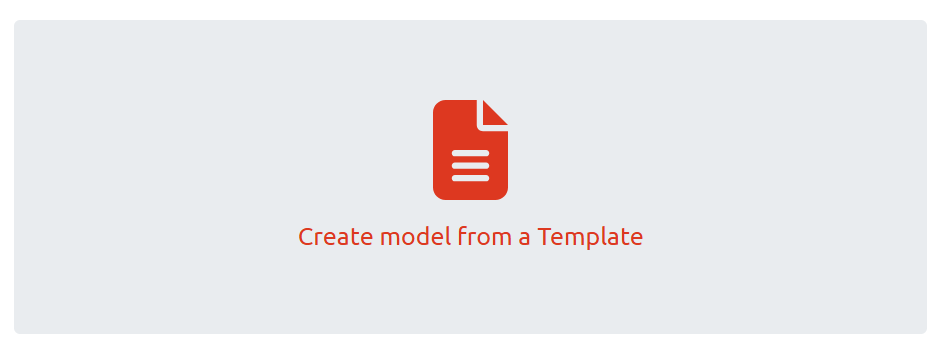
To create a new threat model from a template, go to the Welcome page and click the Create model from a Template button.
You will then be presented with the Template Gallery showing all available templates. Browse or search for a template that fits your needs, then click on the template card to select it.
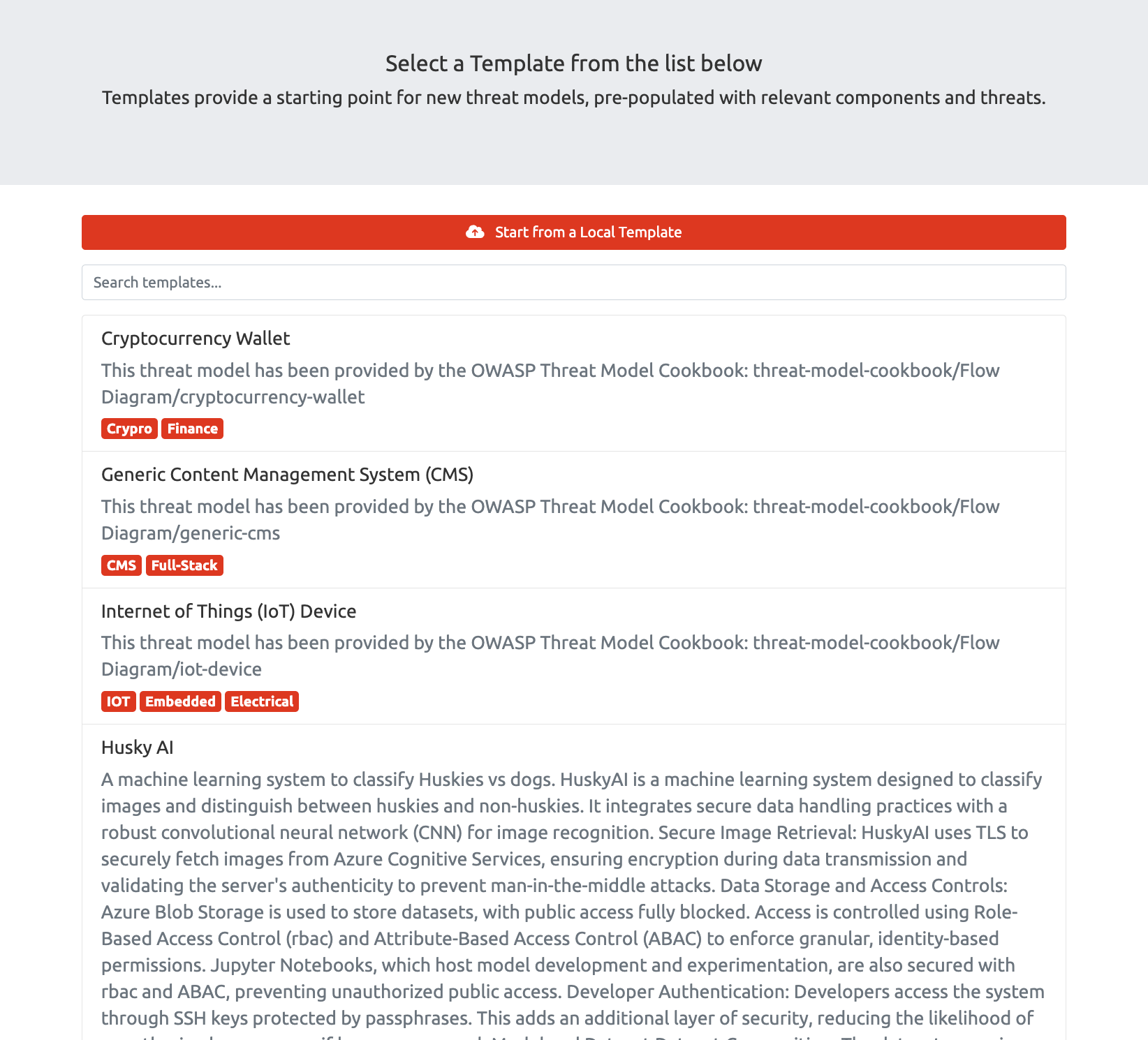
After selecting a template, you will be presented with a list of your repositories. Pick the one where you want to store your new model. If you have more than 30 repos you may need to page through them to find the one you want.
Once you have picked your target repository, you will be asked to pick a branch. Again, if you have more than 30 branches you may need to page through.
When you pick a branch you will be taken to the threat model edit page where you can enter general information about your model. The template’s diagrams, components, and threats will already be populated as a starting point. The name that you provide for the model will be used as the file name within the repository.
Loading a template from a local file
In addition to organisation templates, you can also start from a local template file. This is useful when you have received a template file from a colleague.
Note: Template files use a different schema to standard threat model files and are not interchangeable. To use an existing model as a starting point, first export it as a template using the Export as Template option.
From the Template Gallery, click Start from a Local Template button to browse for a template file
on your local filesystem.

The file will be validated to ensure it is a properly formatted Threat Dragon template (metadata + model content). Once loaded, you can select your target repository and branch just like with organisation templates. The imported template’s diagrams, components, and threats will be used as a starting point for your new threat model.
Note: This creates a new model based on the local file, it does not add the template to your organisation’s template repository. Only administrators can add templates to the shared template gallery.
Exporting an existing model as a template
Note : This feature is currently only available for web-based local sessions and GitHub authenticated sessions. Support for additional providers will be added in a future releases.
If you have created a threat model that would be useful as a template for others, you can export it as a template file that can be shared or imported later.
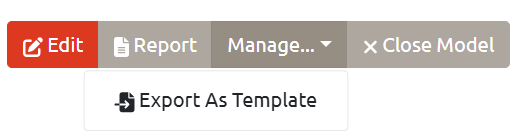
From your threat model’s details page, click on the manage dropdown and select Export as Template. You will be taken to the export template page where you can review and customise the template details.
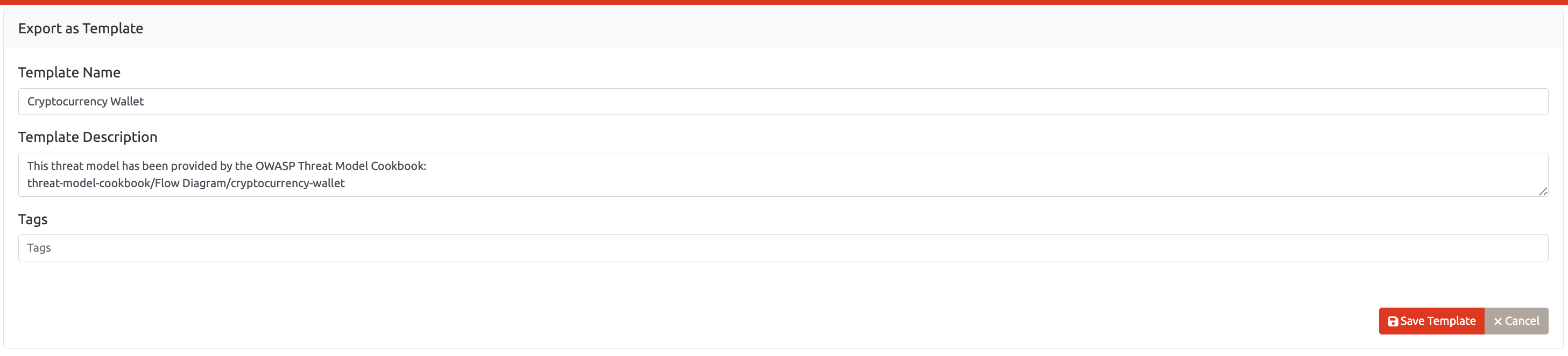
On the export template page, you can:
- Review the template name and description
- Add or modify tags for easier searching
Once you are satisfied with the template details, click Save Template to download the template file to your local filesystem.
The exported template file can then be:
- Shared directly with colleagues, allowing them to create a model from local template without requiring it to be stored in the organisation’s template repository.
- Sent to administrators to be added to the organisation’s template repository
- Used as a local backup or starting point for future models
Note: The export removes any organisation-specific information (such as repository paths) and generates new unique identifiers, making it suitable for use as a reusable template.
Managing Templates (Administrators)
Users with push or admin permissions on the template repository (GITHUB_CONTENT_REPO)
are considered administrators and can manage the organisation’s shared template gallery.
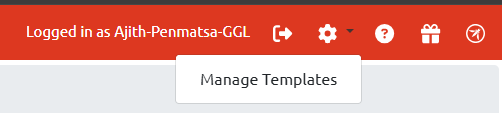
Administrators will see a cog icon in the navigation bar. Clicking the cog reveals a dropdown menu with a Manage Templates option, which takes you to the Manage Templates page where you can add, edit, and delete templates.
For information on configuring the template repository, see the GitHub configuration guide.
Bootstrapping the Template Repository
Before templates can be used, an administrator must initialise the template repository structure. This creates the necessary folders and metadata files.
- Authenticate with Threat Dragon using an account that has admin access to the template repository
- Navigate to the Manage Templates page
- Click the Initialise button (only visible to administrators)
- The repository will be set up automatically

This creates the templates/ directory and template_info.json metadata file in the repository.
Bootstrapping only needs to be done once per repository.
Importing Templates to the Organisation
Administrators can add templates to the shared gallery so all users can access them.
- Obtain a template file (either exported from an existing model or received from a colleague)
- Navigate to the Manage Templates page
- Click the Add New Template button (only visible to administrators)
- Select the template file from your local filesystem
The template will now appear in the Template Gallery for all users.
Updating Template Metadata
Administrators can update a template’s name, description, or tags without modifying the template content.
- Navigate to the Manage Templates page
- Find the template you want to update
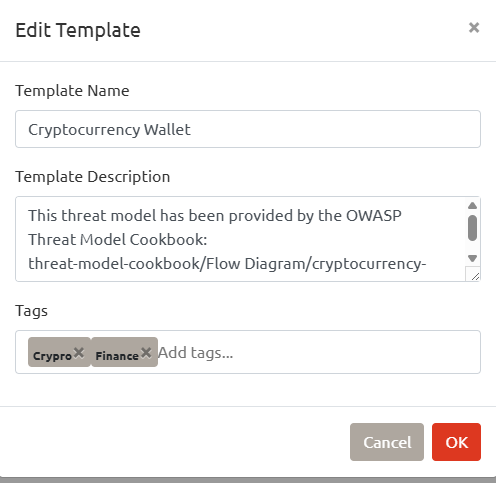
- Click the kebab menu on the template card and select Edit
- Modify the name, description, or tags as needed

Deleting Templates
Administrators can delete templates from the organisation template repo.
- Navigate to the Manage Templates page
- Find the template you want to delete
- Click the kebab menu on the template card and select Delete
- Confirm the deletion
Warning: Deleting a template cannot be undone. Existing threat models created from the template are not affected, but the template will no longer be available for creating new models.
Session timeout: When logging in to an external drive or repository, be aware that sessions can time out. This timeout length varies by provider; if this is a problem, keep the session alive using a tab in the same browser window.