Threat Dragon AI Tool
A desktop application that automatically generates STRIDE threats and mitigations for OWASP Threat Dragon
models using LLMs, then adds them to the model’s .json file.
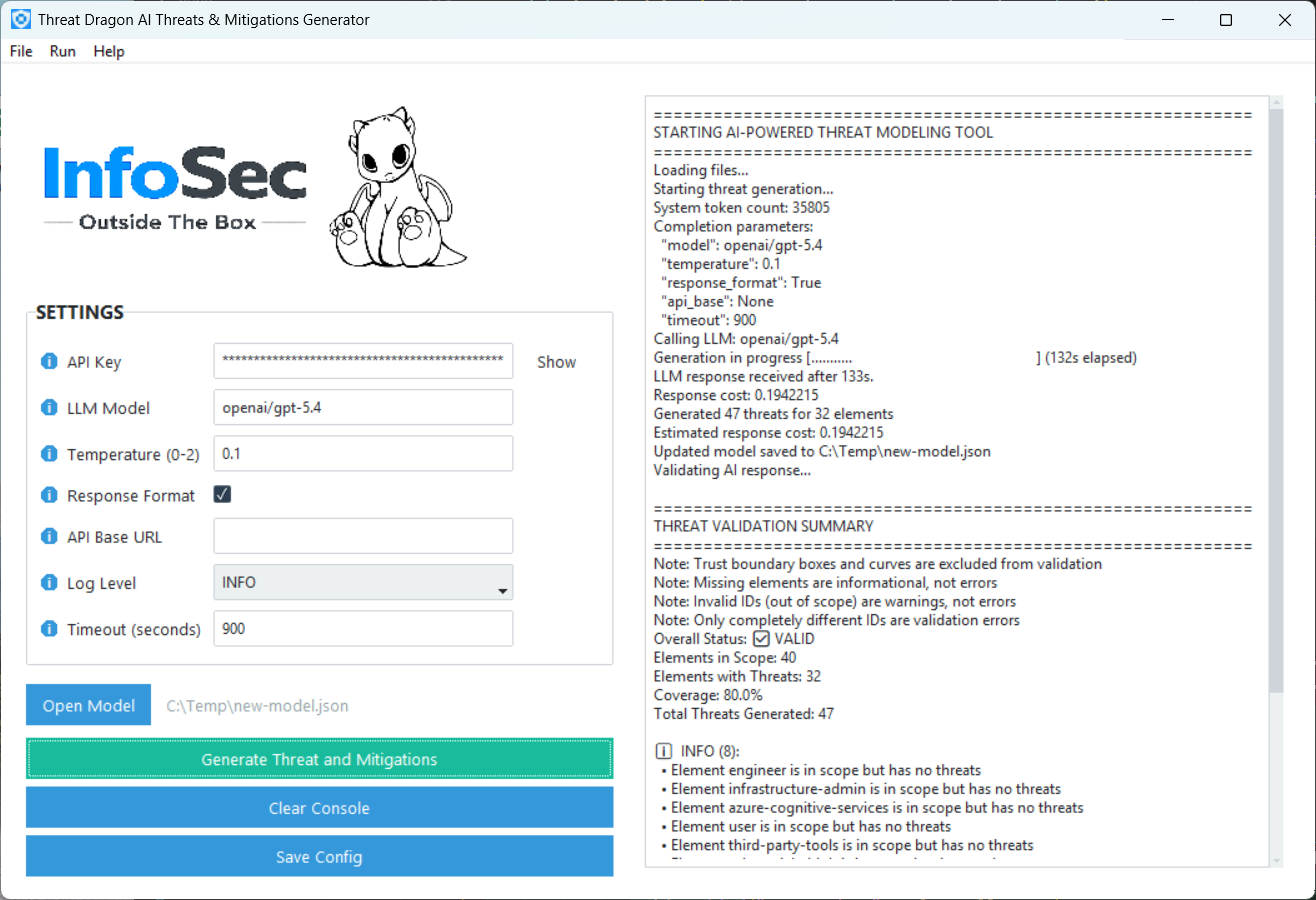
Quick Start
- Download the latest version of the application for your operating system from the InfoSecOTB Threat Dragon AI Tool releases page.
- Move the downloaded compressed file to a folder of your choice and extract it.
- Run the
td-ai-toolexecutable. - Configure the settings:
- Required
- API Key - API key for accessing the LLM service.
- LLM Model - LLM model identifier, for example
openai/gpt-5,anthropic/claude-sonnet-4-5, orxai/grok-4. - Response Format - Enables structured JSON output. Should be enabled for supported models
such as
openai/gpt-5orxai/grok-4. If it is enabled for an unsupported model, or disabled for a supported model, the request may fail.
- Optional (defaults are usually fine)
- Temperature - Lower values make output more deterministic; higher values increase creativity
and randomness. Valid range:
0to2. - API Base URL - Custom API base URL. Most hosted AI providers do not require this because LiteLLM handles it automatically.
- Log Level - Logging level:
INFOorDEBUG. - Timeout - Request timeout in seconds for LLM API calls. Default:
900seconds (15 minutes).
- Temperature - Lower values make output more deterministic; higher values increase creativity
and randomness. Valid range:
- Required
- Click Save Config to persist the settings.
- Non-secret settings are saved to
config.jsonin the same folder as the executable. - The API key is saved separately in the OS secure credential store (via
keyring) and is not written toconfig.json.
- Non-secret settings are saved to
- Click Open Model (or File → Open Model) and select a Threat Dragon
.jsonfile. - Click Generate Threats and Mitigations. A warning dialog will appear - read it, then confirm.
- Wait while the tool processes the model. The console on the right shows progress. Depending on the model size and LLM provider, this can take from a few seconds to several minutes.
- When complete, the tool writes threats directly into your
.jsonfile and runs a validation pass. Open the file in Threat Dragon to see the results.
Resources
You can find more information about the Threat Dragon AI Tool in the following locations:
- GitHub Repository
- Articles on InfoSecOTB blog: